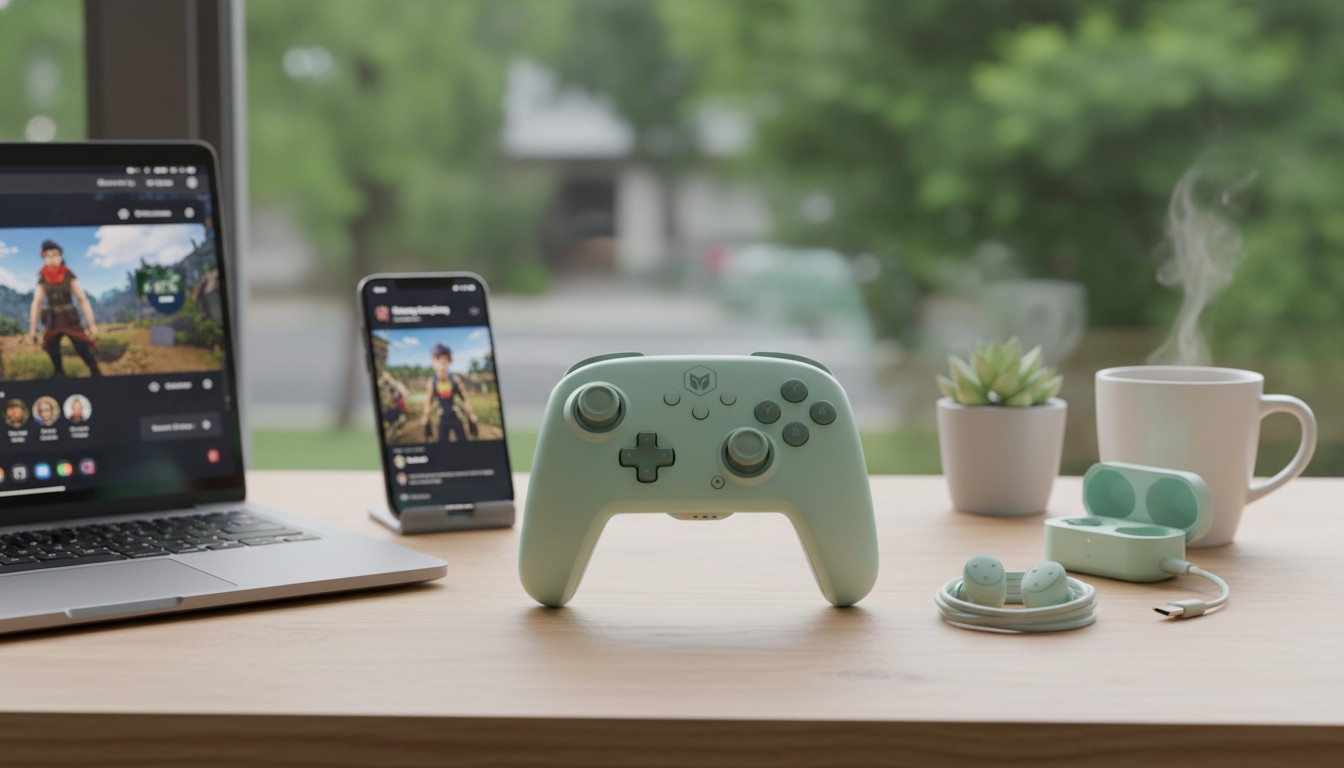
A versatile wireless controller makes it easier to move between Nintendo Switch, PC, and mobile without relearning layouts or giving up features that actually matter in gameplay. If you’re deciding whether Turbo and 6-axis motion are worth it, the biggest question is simple: will these features help you play more comfortably and more accurately on the devices you use most? For more guidance, see The Console in Your Pocket: An In-Depth Review of the GameSir X5s.
Below is a practical breakdown of what Turbo and motion control change moment-to-moment, what to expect on each platform, and a quick checklist to confirm comfort, latency, and compatibility before you buy. For further reading, see Game controller – Wikipedia.
Two features tend to separate a basic wireless controller from one that feels “purpose-built” for a mix of fast action and precision: Turbo for repeated inputs and 6-axis motion sensing for tilt/gyro control.
| Feature | What it does | Where it helps most | Notes |
|---|---|---|---|
| Turbo | Repeats a button input while held | Action games, RPG grinding, accessibility | May be disabled or discouraged in some games |
| 6-axis motion | Reads controller rotation/tilt | Switch shooters, driving/gyro aim, motion puzzles | Game support varies; calibration can matter |
| Wireless Bluetooth | Cable-free connection to supported devices | Couch play, handheld setups, travel | Latency depends on device, interference, and settings |
On Switch, the big wins are convenient couch play and motion control support in compatible games. Look for stable pairing, reliable reconnect behavior, and consistent motion performance. For official pairing guidance and controller basics, Nintendo’s support hub is a helpful reference: Nintendo Support: Pairing and controller information for Nintendo Switch.
Bluetooth pairing is convenient, but controller detection can vary from game to game. If a title doesn’t recognize inputs the way you expect, Steam Input can often translate or remap controls so the controller behaves consistently across your library. Steam’s documentation is the quickest place to learn how to confirm detection and adjust mappings: Steam Support: Steam Input and controller configuration.
Mobile support depends heavily on the game or app. Cloud gaming and remote play apps commonly support controllers, but button prompts and mapping can differ from console layouts. If a game recognizes the controller but buttons feel off, check the game’s controller settings first, then OS-level controller settings (if available).
If your goal is a single controller that can move between Switch, PC, and mobile without losing the features that make certain games feel better, the Wireless Bluetooth Gaming Controller with Turbo & 6-Axis for Switch/PC/Mobile is built for exactly that kind of rotation. Turbo is there for rapid-repeat inputs when appropriate, while 6-axis support is ready for compatible motion-enabled mechanics.
For a small add-on that can complement a gaming desk or lounge setup, consider the Creative Dice-Shaped Ashtray – Unique Desktop Accessory for Home or Office, a fun conversation piece that fits well in a game room or workspace.
No—Turbo depends on how the platform and the specific game handle repeated inputs, and some titles restrict or discourage it. Test Turbo in a training area or low-stakes mode first, and make sure you know how to turn it off quickly if it affects menus or online play.
Motion support is most common and straightforward in Switch games that are designed for gyro or tilt input. On PC and mobile, it depends on whether the game/app supports gyro and how the controller is detected, so it’s best to confirm per title before relying on motion aiming.
Keep the controller close to the device with minimal obstacles, reduce nearby wireless interference, and keep your OS and Bluetooth drivers updated. On PC and mobile, closing heavy background tasks can also help maintain steady input timing.







Leave a comment