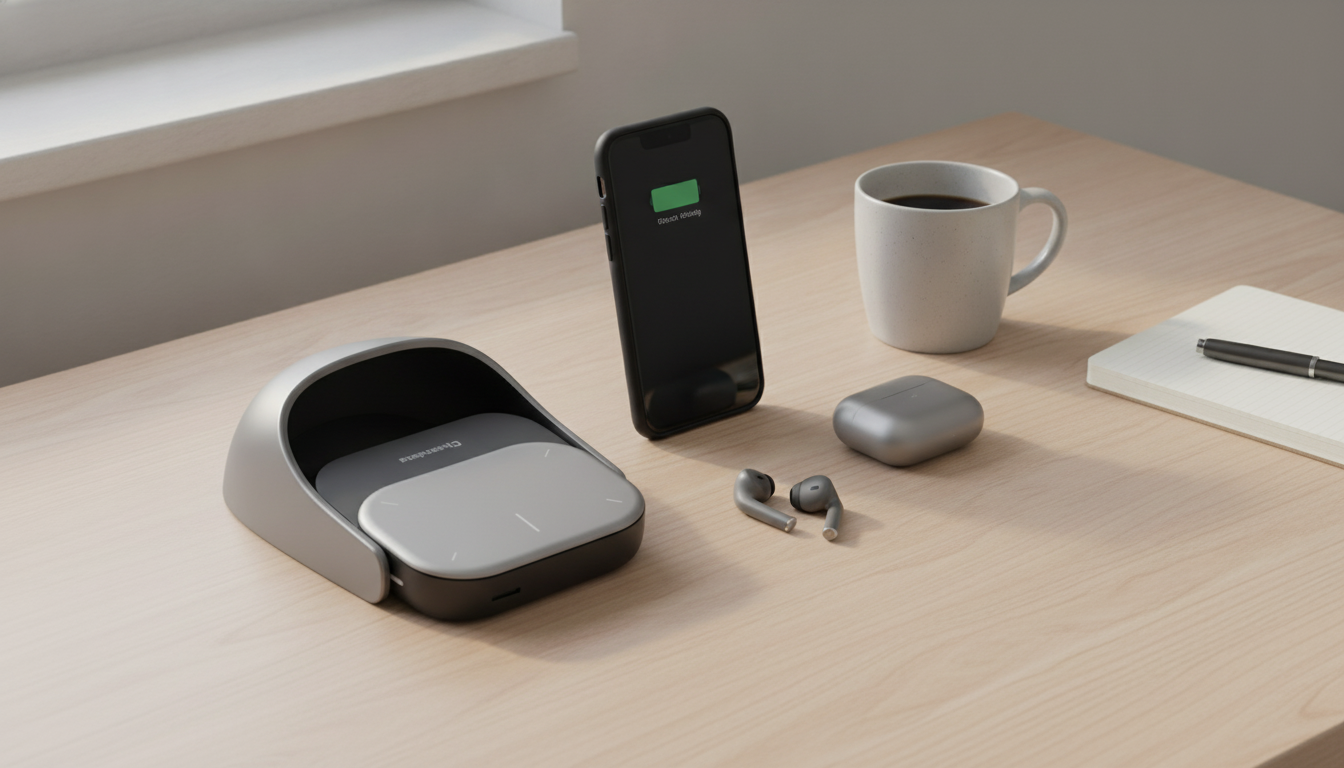
A handheld controller that combines an air mouse and a touchpad can make navigating TVs, streaming boxes, PCs, and conference-room displays feel faster and more natural than a standard remote. The Wireless AI Touchpad Air Mouse is built for pointer-style control, quick swipes, and easier on-screen typing—especially in living-room setups and meeting spaces where a desk mouse doesn’t make sense. Below is a practical breakdown of what it replaces, who benefits most, how to set it up smoothly, and what to check before buying.
An air mouse uses motion sensors to move a cursor on-screen when you tilt or point the controller. Pair that with a touchpad area, and you get two ways to steer: “point and click” from the air for quick navigation, and touch gestures for fine control when you need accuracy.
In practice, it fills the gap between a traditional D-pad remote (great for simple menus) and a full keyboard/mouse combo (great but bulky). It’s particularly helpful any time a cursor, search bar, or login screen appears.
If the setup regularly involves entering passwords, searching inside apps, or navigating web pages on a big screen, a pointer plus touch control usually feels more direct than tapping a D-pad hundreds of times.
Small differences in motion behavior and button layout can make the experience feel “effortless” or “fussy.” These are the everyday factors that matter most.
When comparing devices, prioritize stable cursor control first. A “feature-rich” remote still feels slow if the pointer jitters, drifts, or requires constant re-centering.
A clean first setup prevents most “it doesn’t work” moments. Use this quick checklist before troubleshooting deeper issues.
Most air mouse/touchpad devices are designed to behave like standard HID (Human Interface Device) input, which is why they often work without extra drivers. References: USB Human Interface Device (HID) Class and the Bluetooth HID Profile.
| Device type | What to verify | Typical result |
|---|---|---|
| Windows PC / mini PC | HID mouse support, USB port or Bluetooth | Usually works out of the box |
| Android TV / TV box | Pointer support in system UI and apps | Works in system UI; app behavior varies |
| Smart TV | USB input support and app restrictions | Often works for navigation; typing varies by brand/app |
| Mac | HID support and permission prompts | Often works; gestures may be limited |
| Game console | Mouse support in UI and apps | Limited; depends on console and app |
For general ergonomics guidance on repetitive movements and comfort, see NIOSH ergonomics resources.
Many smart TVs and streaming devices accept standard HID mouse input through a USB receiver or Bluetooth, so basic navigation often works right away. Some apps may limit pointer behavior, so it’s best to test in the system menu and a search field first.
Drift is usually improved by keeping a consistent hold angle, using any reset/re-center function if available, lowering sensitivity, and making sure the battery is well charged. Some slight drift can be normal with motion sensors, especially in high-interference environments.
In most living rooms or conference rooms, it typically works reliably from several feet away across the room, but range can drop with walls, cabinets, metal stands, or wireless interference. For better results, plug the receiver into a front/side port or use a short USB extension to improve line-of-sight.






Leave a comment